

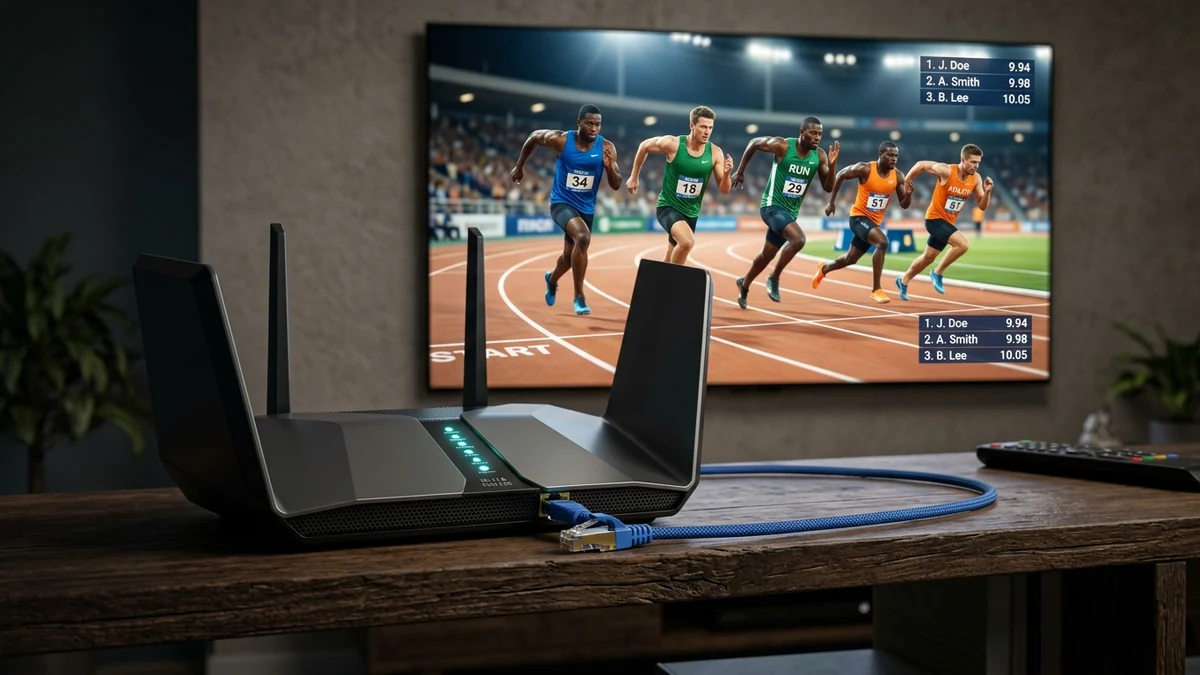
Nothing interrupts live sports or a movie premiere faster than a spinning loading ring. Video buffering in streaming media is rarely an unsolvable problem. In almost all instances, buffering results from local Wi-Fi packet drops, DNS resolution latency, misconfigured video decoders, or sub-optimal player buffer settings.
This technical guide breaks down the real mechanics of streaming packet delivery and provides actionable optimizations you can apply right away to achieve smooth, bufferless playback on your devices.
Guide Contents
1. Understanding the Root Causes of Buffering
When streaming a live HLS or MPEG-TS video stream, your media player continuously downloads video chunks (segments of 2 to 6 seconds each) into temporary RAM memory. If the download rate falls below the video's target bitrate, the player empties its queue faster than it can refill it, causing a playback freeze.
While users often blame the server infrastructure, local home network congestion accounts for over 80% of playback freezes.
2. Wi-Fi Band Selection & Ethernet Optimization
The 2.4 GHz wireless frequency is heavily congested by neighboring routers, Bluetooth devices, and microwaves. Although it provides long range, its latency and packet loss make it poor for high-bitrate video streaming.
- Switch to 5 GHz Wi-Fi: Ensure your Smart TV or streaming stick is connected to the 5 GHz Wi-Fi SSID. The 5 GHz spectrum offers significantly wider channel bandwidth and zero microwave interference.
- Use Direct Ethernet: For 4K UHD streams, nothing surpasses a physical Cat6 Ethernet cable. It eliminates packet retransmissions and jitter entirely.
3. Switch to High-Performance Public DNS Resolvers
Default internet service provider (ISP) DNS servers frequently suffer from slow response times and stale cache records, delaying the retrieval of stream playlist manifests (.m3u8).
Configuring high-speed public DNS on your streaming device or home router drastically improves lookup times:
- Cloudflare DNS: Primary
1.1.1.1• Secondary1.0.0.1 - Google Public DNS: Primary
8.8.8.8• Secondary8.8.4.4
1.1.1.1.
4. Hardware Decoder Selection (HW vs HW+ vs SW)
Inside your IPTV player application (such as TiviMate, IPTV Smarters, or XCIPTV), you will find video decoder settings:
- Hardware (HW): Uses your device's dedicated GPU video processor. Recommended for 95% of devices as it provides smooth 60 FPS rendering with minimal heat and CPU load.
- Hardware Plus (HW+): Enhanced hardware mode on Android that supports custom aspect ratios and software audio decoding.
- Software (SW): Forces your CPU to decode video frames. Only use this if a particular legacy stream codec exhibits video glitches on HW mode.
5. Fine-Tuning Player Buffer Cache Windows
Most modern players permit configuring the buffer cache duration. If your internet speed fluctuates:
- Open player Playback Settings.
- Locate Buffer Size or Stream Buffer.
- Increase the buffer from None / Small (0.5s) to Normal (2–3 seconds) or Large (5 seconds).
A 3-second buffer ensures that minor Wi-Fi drops do not stall video playback, giving your network time to catch up without freezing the picture.
6. Addressing ISP Peering & Network Throttling
During peak evening hours (20:00 to 23:00), some residential Internet Service Providers throttle sustained high-bandwidth UDP/TCP streaming traffic or experience congested peering links to transit backbones.
If speed tests show full speed on web browsing but video streams stutter, testing your connection over a reputable VPN with WireGuard protocol can bypass selective ISP traffic shaping by encrypting all data packets.
Explore More Resources
Fire TV Stick Setup Guide →
Step-by-step setup instructions for Amazon Firestick devices.
Hardware Setup Hub →
Comprehensive guides for Smart TVs, Android TV, Mobile, and PC.