

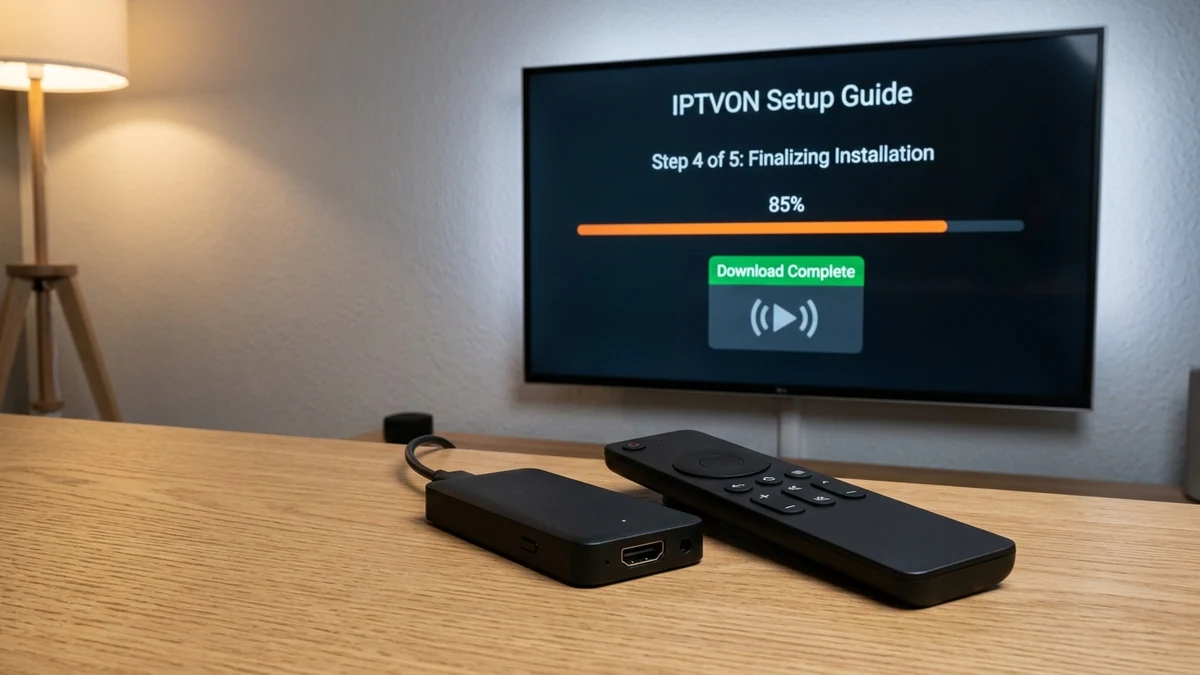
Amazon Fire TV Stick devices—including the Fire TV Stick Lite, Fire TV Stick 4K, 4K Max, and Fire TV Cube—are among the most capable and popular devices for streaming IPTVON. Their compact footprint, hardware-accelerated video decoding, and tactile remote navigation make them ideal for a living room streaming experience.
In this detailed guide, we walk you through the entire process: configuring prerequisites on Fire OS, installing a verified player application via Downloader, inputting your IPTVON Xtream Codes API credentials, syncing the Electronic Program Guide (EPG), and fine-tuning your playback settings for bufferless streaming.
Table of Contents
- 1. Prerequisites Before You Begin
- 2. Step 1: Install the Downloader App on Firestick
- 3. Step 2: Configure Developer Options & Unknown Apps
- 4. Step 3: Install Your Preferred IPTV Player
- 5. Step 4: Configure IPTVON Xtream Codes API Credentials
- 6. Step 5: Optimize Firestick Cache & Hardware Decoders
- 7. Frequently Asked Firestick Setup Questions
1. Prerequisites Before You Begin
Before starting the setup process, ensure you have the following items ready:
- An active Amazon Fire TV device: Connected to your television's HDMI port and powered via the included AC wall adapter (avoid powering Firesticks from TV USB ports as this causes voltage drops during 4K decoding).
- Stable internet connectivity: A download speed of at least 25 Mbps for 1080p Full HD or 50 Mbps for 4K streams. Connect to the 5 GHz Wi-Fi band or use an Amazon Ethernet adapter.
- Your IPTVON credentials: You will need the Server URL, Username, and Password provided in your subscription activation notification.
2. Step 1: Install the Downloader App on Firestick
The easiest way to install third-party player applications on Fire OS is using the official Downloader app by AFTVnews, which is available directly in the Amazon Appstore.
- From the Fire TV Home screen, navigate to Find → Search.
- Type
Downloaderusing the on-screen keyboard. - Select the orange Downloader icon from the search suggestions.
- Click Download or Get and wait for the application to install.
3. Step 2: Configure Developer Options & Unknown Apps
To permit Downloader to install your media player, Fire OS requires enabling permission for unknown applications:
- Go to Settings (the gear icon on the far right of the home bar).
- Select My Fire TV.
- Select Developer Options. (Note: If Developer Options is hidden on newer Fire OS versions, click "About", highlight your Fire TV name, and press the remote center button 7 times until you see the message "No need, you are already a developer".)
- Click Install unknown apps.
- Locate Downloader and toggle it to ON.
4. Step 3: Install Your Preferred IPTV Player
Now open the Downloader app from your Apps & Channels grid:
- When prompted on first launch, click Allow to grant file access permissions.
- In the URL input box, enter the download code or direct URL for your preferred IPTV player (such as IPTV Smarters Pro or TiviMate).
- Press Go. The APK file will begin downloading automatically.
- Once downloaded, click Install in the system prompt.
- After installation finishes, click Done and select Delete to remove the installation APK and conserve storage.
5. Step 4: Configure IPTVON Xtream Codes API Credentials
Open the installed player from your Fire TV Apps menu. We strongly recommend configuring via Xtream Codes API rather than raw M3U link, as it allows rapid background catalog indexing and automatic EPG synchronization.
- Select Login with Xtream Codes API (or "Add User").
- Enter any profile name (e.g.
IPTVON Living Room). - Input your Username.
- Input your Password.
- Input your Server URL (be sure to include
http://and the specific port number without trailing slashes). - Click Add User / Connect.
6. Step 5: Optimize Firestick Cache & Hardware Decoders
To guarantee stutter-free playback on Fire TV hardware, apply these recommended settings inside your player app:
- Hardware Decoder: In Player Settings, set the video decoder to Hardware (HW) or HW+. This instructs the Fire TV’s dedicated GPU chip to decode the video stream rather than overloading the CPU.
- Stream Format: Choose HLS (.m3u8) for Live TV to achieve the lowest channel-changing latency.
- Buffer Size: Set buffer size to Normal (2–3 seconds). Setting the buffer too high wastes RAM on Firesticks with 1 GB or 1.5 GB memory.
7. Frequently Asked Firestick Setup Questions
Buffering is usually caused by 2.4 GHz Wi-Fi congestion or background apps. Switch your Firestick to 5 GHz Wi-Fi, force close unused background apps, or clear the player cache in Fire TV Application settings.
Yes. The directional D-pad, OK button, Play/Pause, Rewind, Fast Forward, and Volume buttons on your standard Fire TV Alexa remote work seamlessly inside compatible players.
Related Tutorials & Guides
How to Fix IPTV Buffering: Technical Optimization Guide →
Learn how network routing, MTU settings, and buffer sizes affect playback stability.
Understanding EPG: How to Set Up XMLTV Guides →
Step-by-step instructions to sync channel schedules and fix timezone offsets.